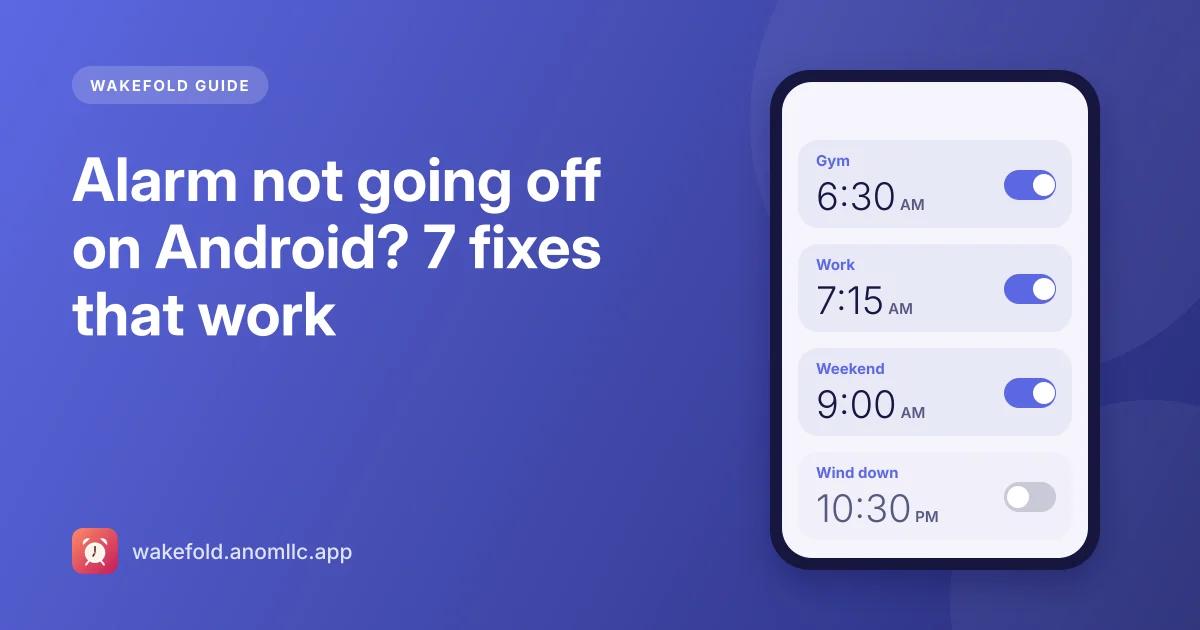
An alarm that doesn't ring is the worst kind of bug, and on Android it's almost always caused by a setting rather than a broken phone. Work through these checks in order; most people find the cause in the first three.
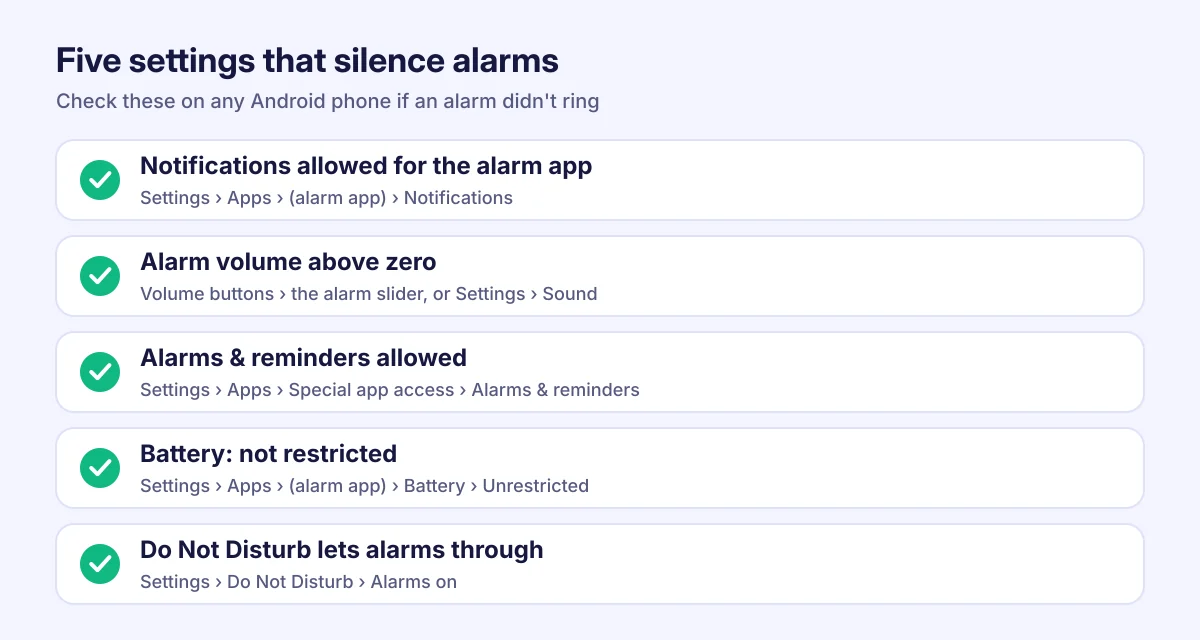
1. Notifications for your alarm app
On Android 13 and newer, an app needs permission to show notifications, and many alarm apps (Wakefold included) ring through a notification that opens the full-screen alarm. If notifications are off, the alarm can stay silent.
Check: Settings › Apps › your alarm app › Notifications › allow. Also open the categories there and make sure the ones for ringing alarms aren't silenced.
Wakefold shows a warning on its Alarms screen if notifications are off, with a button to fix it.
2. Alarm volume
Android has a separate volume for alarms. Media volume and ringtone volume don't affect it, and it can sit at zero without you noticing.
Check: press a volume button, open the full volume panel (the three dots or the slider icon), and raise the alarm slider. Or: Settings › Sound › Alarm volume.
Wakefold warns you if the alarm volume is off and can turn it up for you.
3. Alarms & reminders permission (exact alarms)
Apps that ring at an exact minute need permission to set exact alarms. On most phones alarm apps get it automatically; on Android 12, it can be switched off.
Check: Settings › Apps › Special app access › Alarms & reminders › your alarm app › allowed.
4. Battery optimization
Some phones are aggressive about stopping apps in the background. Alarms set through Android's alarm system usually survive this, but some manufacturers' "battery saver" or "app sleep" lists can still interfere.
Check: Settings › Apps › your alarm app › Battery › Unrestricted (or "Don't optimize"). On Samsung phones, also check that the app isn't in Sleeping apps or Deep sleeping apps.
5. Do Not Disturb and modes
Do Not Disturb normally lets alarms through, but the option can be turned off.
Check: Settings › Notifications › Do Not Disturb (or Modes) › make sure Alarms are allowed. Check any bedtime or sleep mode too.
6. Full-screen alarm on the lock screen
On Android 14 and newer, apps need permission to show a full-screen notification over the lock screen. Without it, the alarm may only appear as a small notification.
Check: Settings › Apps › Special app access › Full screen notifications (or "Full-screen intents") › your alarm app › allowed.
7. The alarm itself
- Is it turned on, and set for the right AM or PM?
- Is it set for the right days? A one-time alarm turns itself off after ringing.
- Did a time zone change (travel) move it? Alarm apps should follow the local time.
Test it
Set an alarm two minutes from now, lock the phone and wait. If it rings, you're done. In Wakefold, the Alarms screen shows "Next alarm in …" at the top, so you can see at a glance that an alarm is set.
To set alarms quickly and on the right days, see how to set an alarm on Android.